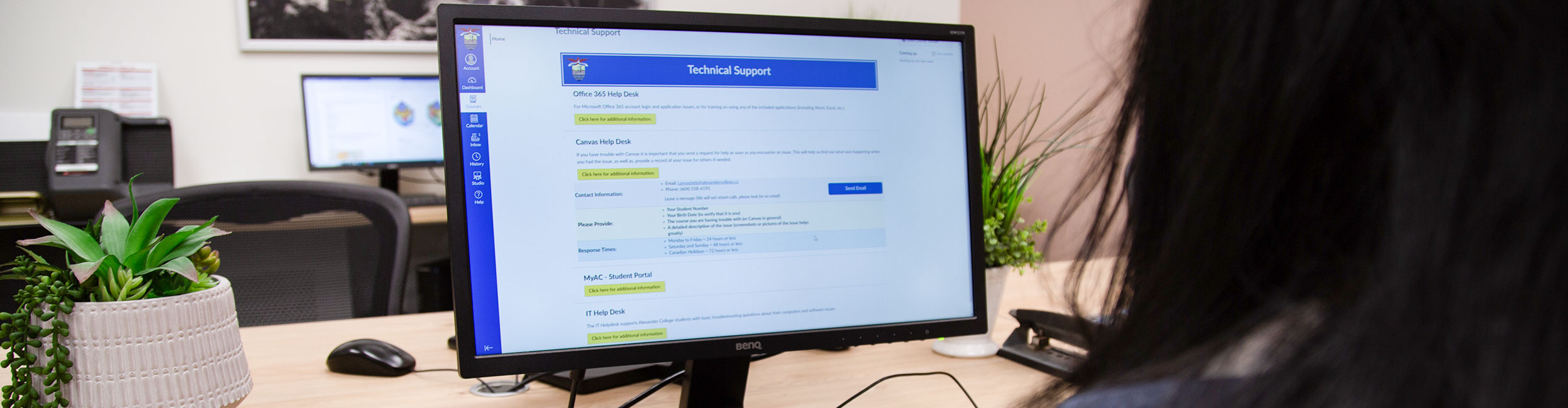
Canvas is a learning management system that Alexander College uses to administer classes and manage digital course materials. Students use Canvas to access learning materials, submit assignments, complete quizzes and exams, view grades, and communicate with their instructors and classmates.
To access the Canvas mobile application, you will need your mobile phone and a second device, such as a computer, laptop, or another phone.
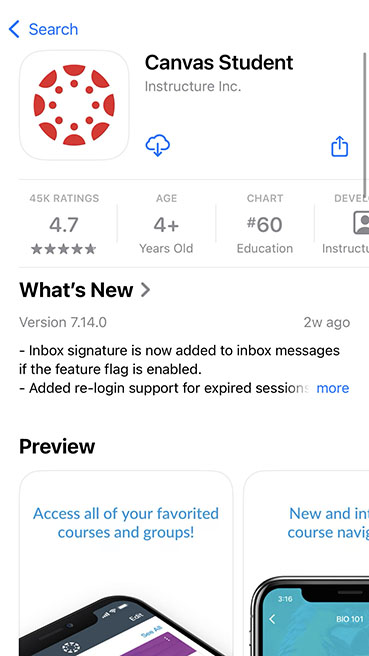
On your mobile phone, download the Canvas Student application.
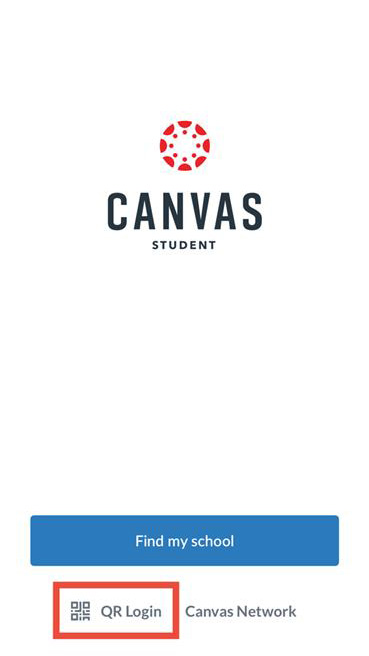
Open the Canvas Student application and select QR Login.
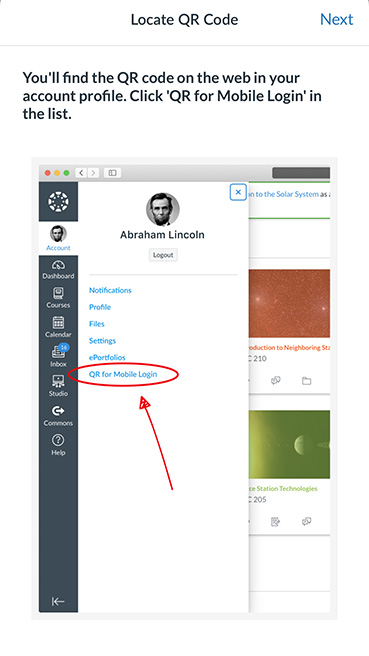
Follow the instructions and scan the QR code displayed on your second device.
You should now be logged into the Canvas app. Your login information will be saved, so you should only need to complete this process once.
Yes, all courses that are part of Alexander College’s degree programs use Canvas.
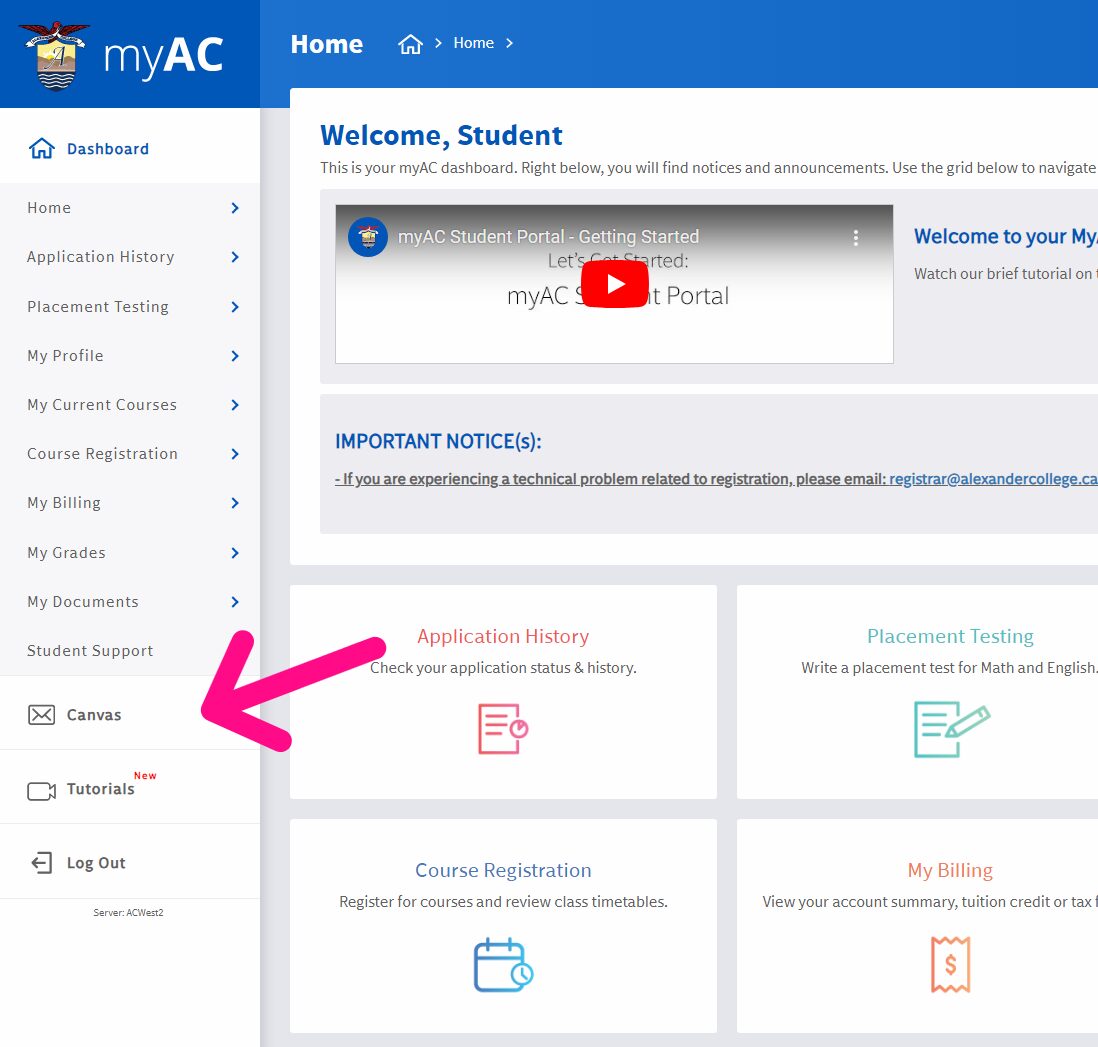
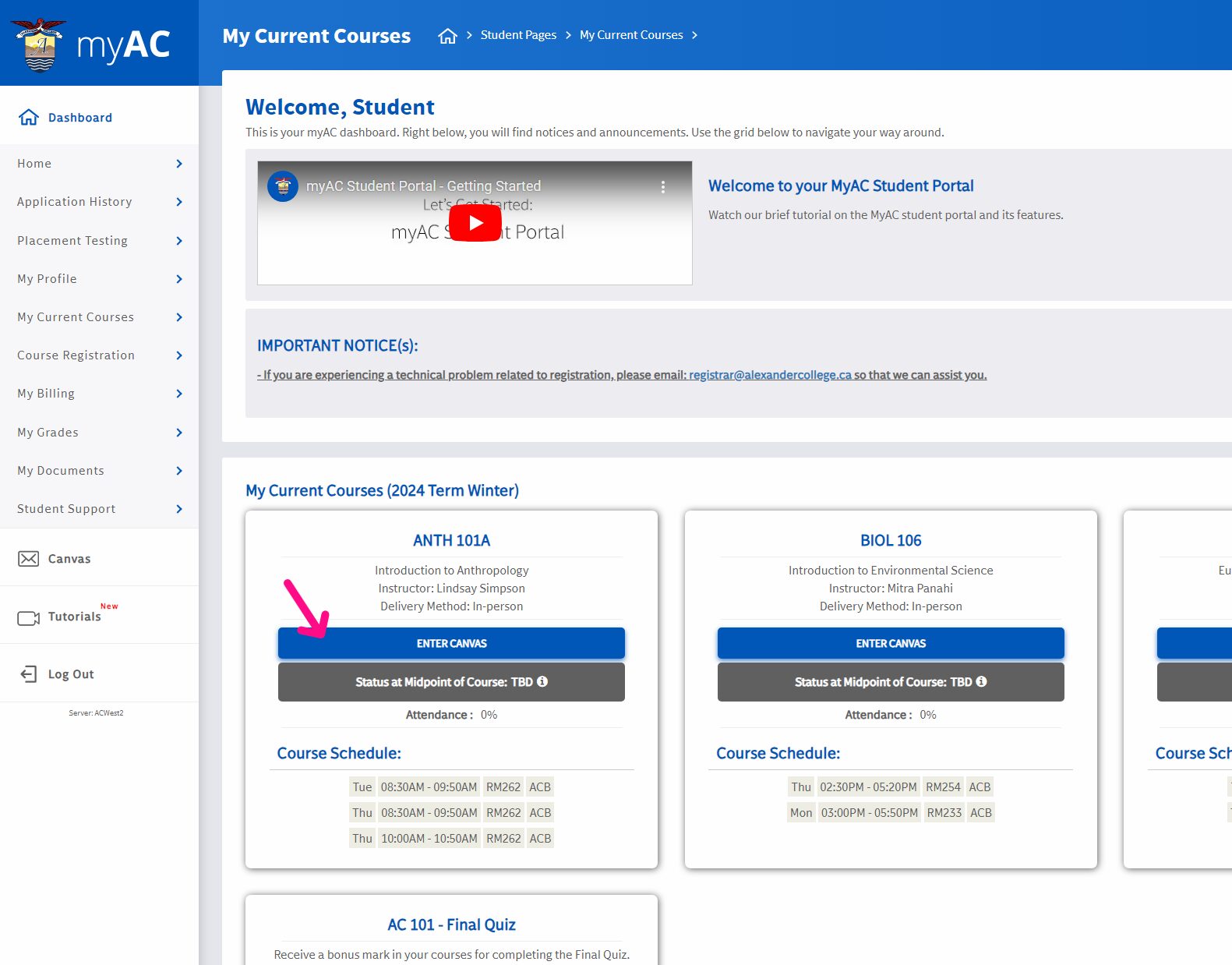
No. You can access Canvas by logging into the myAC portal.
It can take 12–36 hours for your Canvas account to be created and set up after you register for classes. If you recently registered, please try again tomorrow.
Canvas courses are normally published shortly before the term starts. You may need to wait until the beginning of the term to see your course.
If you recently registered for a course, it could also take up to 12–36 hours for it to become visible on Canvas.
You can use the Canvas mobile app to view course materials, but you should not use it to complete assignments, quizzes, or exams. These should be completed using a laptop or desktop computer.
Please refer to the Essential Supplies information for more details.
Email IT Help Desk ithelpdesk@alexandercollege.ca
Alexander College acknowledges that the land on which we usually gather is the traditional, ancestral and unceded territory of the Coast Salish peoples, including the territories of the xʷməθkwəy̓əm (Musqueam), Skwxwú7mesh (Squamish), and Səl̓ílwətaʔ/Selilwitulh (Tsleil-Waututh) Nations. We are grateful to have the opportunity to work in this territory.
Alexander College acknowledges that the land on which we usually gather is the traditional, ancestral and unceded territory of the Coast Salish peoples, including the territories of the xʷməθkwəy̓əm (Musqueam), Skwxwú7mesh (Squamish), and Səl̓ílwətaʔ/Selilwitulh (Tsleil-Waututh) Nations. We are grateful to have the opportunity to work in this territory.

+1 604-435-5815
#100 - 570 Dunsmuir St.,
Vancouver, BC
V6B 1Y1 Canada


